TABLE OF CONTENT
- Introduction
- Method 1 : manual entry for an SKU
- Method 2 : editing via the Catalog view (grid)
- Method 3 : uploading a file manually
- Method 4: configuring input Feeds
Introduction
Multiply calculates price bounds based on your parameters to define the price range within which it can recommend prices. It is essential to set up these parameters and keep them updated to ensure accurate recommendations.
The data linked to an SKU is stored in Multiply and can be replaced or deleted as needed.
Method 1 : manual entry for an SKU
This method allows you to enter parameters directly on the product screen in Multiply, one offer at a time, whenever you want. From the following parameters can be updated.
Pricing > Competition > ... > Price bounds
- Bound parameters (reference price, minimum and maximum, margin rates)
- Hard bounds
- Auto pricing
- VAT rates
- Costs
Method 2 : editing via the Catalog view (grid)
This method allows the parameters of several SKUs to be updated at once directly in Multiply, using a spreadsheet-style grid. Values are edited cell by cell across many products, then all changes are saved in one go — without preparing or importing a file.
How to access the Catalog view
The Catalog view can be opened two ways:
- From the sidebar: Pricing > Catalog.
- From the Pricing screen, using the view toggle at the top and select Catalog.
The grid displays one row per SKU and one column per attribute. It loads up to 2000 rows per page.
Data that can be edited
The following can be edited, among others:
- Minimum and maximum listing and landed prices (including and excluding VAT)
- Minimum and maximum margin rates (listing and landed)
- Reference price, hard (safe) prices, overridden shipping price
- Costs (cost of goods sold, commission, shipping and handling)
- VAT rates, weight, return and cancellation rates
- Pricing strategy and auto-pricing (on/off), EAN
Identity and calculated columns (SKU, title, current prices) are read-only.
Numbers follow the regional format set in User Preferences (for example 1,234.56 or 1.234,56). This is separate from the interface language, so the app can stay in one language while numbers are entered another way.
Editing: colours, errors and tooltips
As cells are edited, they change colour to show their state:
| Colour | Meaning |
|---|---|
| Blue | Edited but not yet saved |
| Green | Just saved successfully (brief flash) |
| Orange | Saved — with a heads-up worth knowing about (for example, a cost entered in a different currency). Nothing was blocked. |
| Red | A problem — the value is invalid, or the change was rejected |
A flagged cell shows a small coloured corner triangle; hovering over it displays a tooltip.
If a value isn't a valid number for the regional format, the text is kept and never silently changed. While any cell is invalid, Save is disabled and no changes are saved — not just that cell — until it is corrected.
Filling quickly
To copy a value across a range, select a cell, grab the small fill handle at its bottom-right corner, and drag. Copy/paste and undo/redo are also available.
Saving
Multiply saves all changes together when Save is clicked.
Method 3 : uploading a file manually
This method allows you to manage the parameters of one or several SKUs by importing a file, enabling you to update multiple offers at once within a single catalog directly on your Multiply portal. Ensure that the file adheres to the column names that Multiply can read.
Essential conditions for file processing
- The file must include skus.
- The file must be in .txt, .csv, or .xlsx format
- The file must be tab-delimited.
- Column names are case-sensitive and must follow the exact spelling as specified (see the table below).
- Decimal numbers should be written with a period (".").
- To delete integrated data, the cell must contain [NULL].
- Each file import is associated with a specific catalog; to modify parameters for multiple catalogs, perform an import for each catalog.
Steps to import a file
- Go to Import and Export > Import Catalog.
- Choose your catalog.
- Add your file.
- Click Send.
Data You Can Import into Multiply
Please find below the mostly frequent used data to import :
You can used the report Catalog Data Report as a template and keep the headers you need ( delete the others).
| HEADER | VALUE |
|---|---|
| sku | Mandatory |
| reference_listing_price_inc_vat | Reference price including VAT |
| ean13 | EAN code |
| weight_kg | Weight of your product in kilos |
| reprice | TRUE = enable auto pricing FALSE = disable auto pricing |
| active | TRUE = force SKU as active FALSE = force sku as inactive |
| overridden_shipping_price_inc_vat | This value will replace the shipping fee recovered in the marketplace API. It willonly be used to calculate your bounds and target price. It will not replace your current shipping price on the marketplace. |
| pricing_strategy_id | = please contact a team member of the Customer Success Team |
| costs.cost_of_goods_sold.amount | Cost of your product VAT excluded |
| min_safe_price_inc_vat | Hard min listing price including VAT |
| max_safe_price_inc_vat | Hard max listing price including VAT |
| min_listing_price_inc_vat | Minimum listing price including VAT |
| max_listing_price_inc_vat | Maximum listing price including VAT |
| min_landed_margin_rate | Minimum landed margin rate |
| max_landed_margin_rate | Maximum landed margin rate |
| min_listing_margin_rate | Minimum listing margin rate |
| max_listing_margin_rate | Minimum listing margin rate |
Import Results
Multiply displays the result of each importation.
Import and Export > Imported feeds
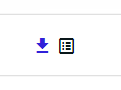
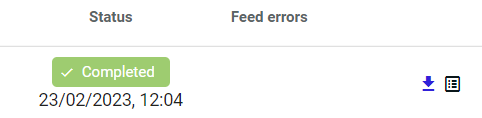
Blue arrow allows you to download your feed.
File symbol is a report that displays the exact data that has been imported in Multiply
| The stream or file does not contain any errors preventing its reading. There is an available integration report because data has been imported. |
| The stream or file does not contain any errors preventing its reading. The content is not valid and prevents data integration. You can view the errors by clicking on "View errors." There is no integration report available because the data has not been imported. |
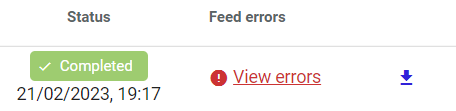
 | The stream or file does not contain any errors preventing its reading. It contains some errors that need to be checked You can view the errors by clicking on "View errors." There is an available integration report because data has been imported. |
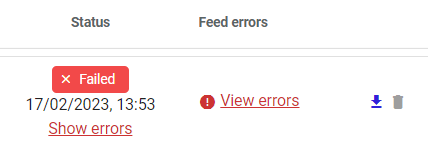
| The stream or file contains errors that prevent its reading. You can view the errors by clicking on "View errors." There is no integration report available because the data has not been imported. |
Most commons errors
- Missing SKUs (It could be on of the following reasons)
- The file format is incorrect, preventing the reading of the "sku" column (file is not tab delimited)
- "sku" header is missing
- Some lines of the file are missing SKUs
- Decimal numbers are written incorrectly, with comma for example.
- The presence of misplaced symbols can disrupt the stream reading.
Method 4: configuring input Feeds
This method allows you to import your SKU parameters automatically on a daily basis using a feed, updating multiple offers across one or more catalogs simultaneously.
Essential conditions for feed processing
- Provide Multiply with a URL.
- Ensure the feed contains the SKUs and the data to be imported into Multiply.
- Specify which column needs to be mapped.
- Make sure your feed is available
- Any change requires Multiply to be informed in order to change the integration parameters.
Force an import
By default, the integration runs every morning.
If you modify values in your input feed and need an immediate update, Multiply allows you to manually refresh the integration task. By refreshing manually, Multiply gets the updated data sooner and can adjust the parameters and price recommendations accordingly.
Tasks > Task Category = Integration > Load feeds > PLAY
If the taks fails, a message will display the reason.
Import Results
Multiply displays the result of each importation.
Import and Export > Imported feeds
Blue arrow allows you to download your feed.
File symbol is a report that displays the exact data that has been imported in Multiply
| The stream or file does not contain any errors preventing its reading. There is an integration report available. |
| The stream or file does not contain any errors preventing its reading. The content is not valid and prevents data integration. You can view the errors by clicking on "View errors." There is no integration report available because the data has not been imported. |
| The stream or file contains errors that prevent its reading. You can view the errors by clicking on "View errors." There is no integration report available because the data has not been imported. |
Most commons errors
- Missing SKUs
- The file format is incorrect, preventing the reading of the "sku" column ( file is not tab delimited)
- "sku" header is missing
- Some lines are missing SKUs
- Decimal numbers are written incorrectly, with comma for example.
- The presence of misplaced symbols can disrupt the stream reading.
Was this article helpful?
That’s Great!
Thank you for your feedback
Sorry! We couldn't be helpful
Thank you for your feedback
Feedback sent
We appreciate your effort and will try to fix the article